A bottom tab bar for the four things that matter
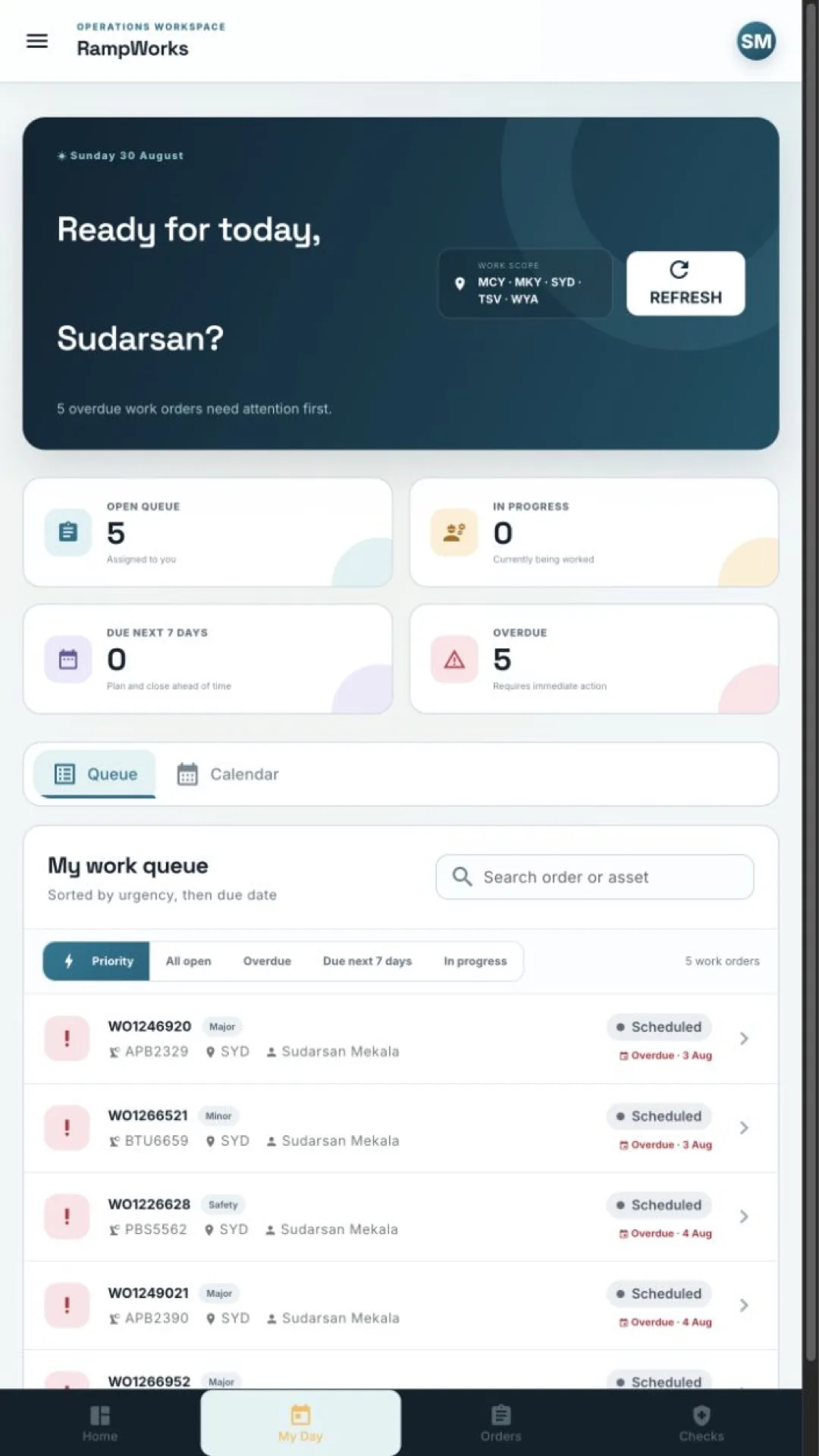
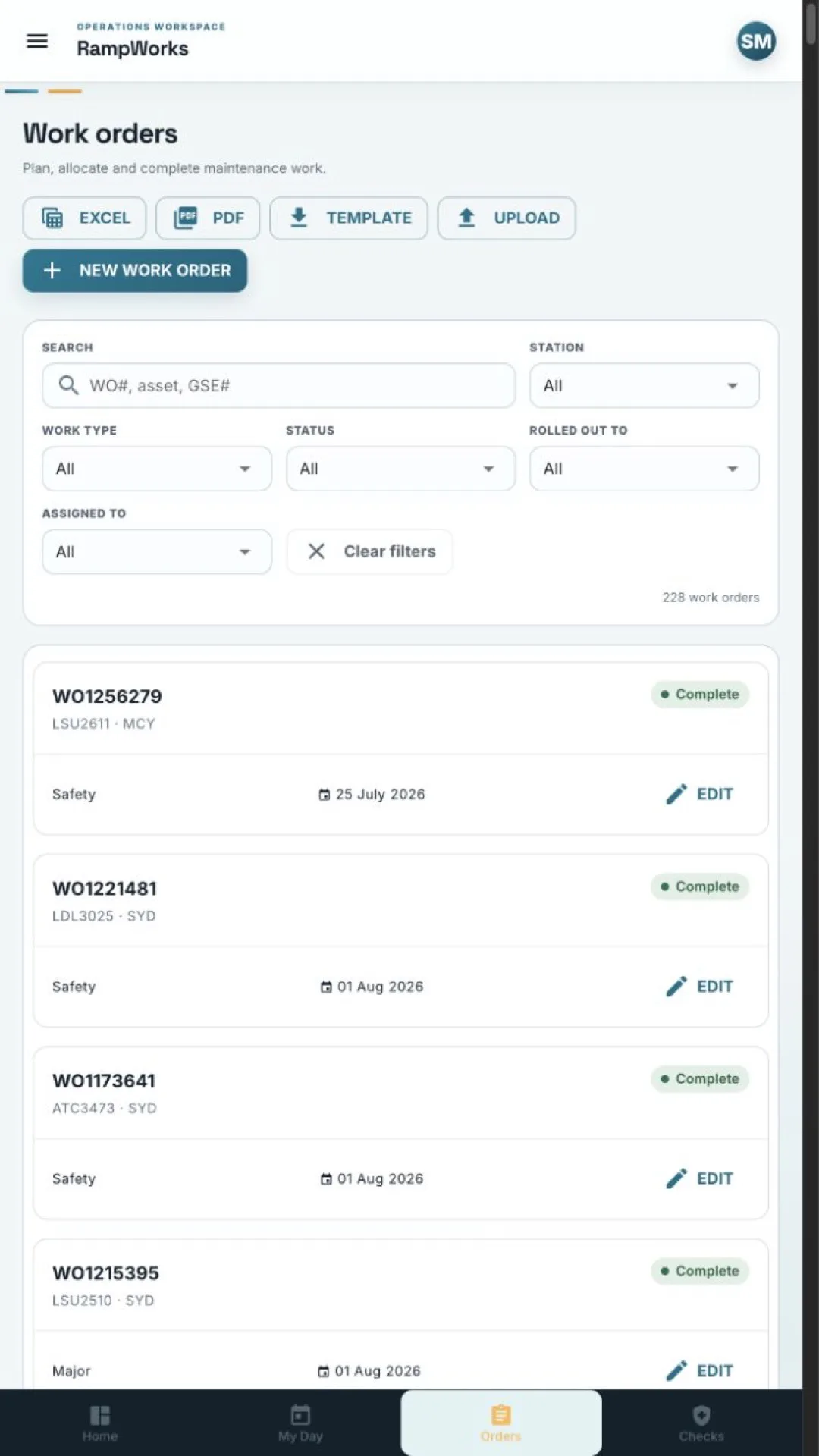
Home, My Day, Orders and Checks sit within thumb reach. The full module list is behind the menu, where it belongs on a small screen.
iOS · Android · Browser
Maintenance is recorded at the equipment or it is recorded from memory. RampWorks ships the same workspace as a responsive web app and as native iOS and Android builds, from one codebase.
The mobile builds are Capacitor wrappers around the identical Quasar client the browser runs. There is no reduced mobile feature set to discover the hard way, and no second database to fall out of step.
Designed for the apron
Home, My Day, Orders and Checks sit within thumb reach. The full module list is behind the menu, where it belongs on a small screen.
Controls, rows and form fields are enlarged on mobile rather than shrunk, and input font sizes are set so iOS does not zoom the page when a field is focused.
Where a desktop shows a dense table, the phone shows a card per record with the work-order number, asset, station, status and due date — readable at a glance in daylight.
Completion consent and technician signatures are captured directly on the device at the equipment, not back at a desk on a printed form.
Organisations run RampWorks either in the browser or as a distributed native build. Both are the same application; only the delivery differs.
Open your workspace address in Safari or Chrome and use Add to Home Screen. It launches full-screen and behaves like an installed app, with nothing to update.
iOS and Android builds are distributed by your organisation, through internal testing or managed distribution. You will be sent an invitation rather than finding it by searching a store.
The session persists between launches, so the sign-in is a first-run step rather than a daily one. Sign out from the account menu when handing a shared device on.
| Browser | Native build | |
|---|---|---|
| Rollout effort | Send a link | Managed distribution per device |
| Updates | Automatic on next load | Distributed as a new build |
| Home-screen launch | Add to Home Screen | Installed app icon |
| Feature set | Complete | Complete |
| Best for | Getting started, occasional users, desktops | Daily ramp use on organisation-managed devices |
Most operations start in the browser and move daily ramp users onto the native build once the workspace is settled.
We can walk through device distribution, shared-device handling and the account setup that goes with it.